
Table of Contents
Elastic Email x Pipedrive Integration: Sync Your CRM Contacts to Your Email Lists Automatically
The new Elastic Email and Pipedrive integration closes that gap. Once connected, it automatically moves the right contacts from Pipedrive into the Elastic Email mailing list you choose. Everything happens without manual exports.
Table of Contents
TL;DR - Elastic Email and Pipedrive integration
- A native Pipedrive Marketplace integration that sends contact data from Pipedrive to Elastic Email.
- You pick a Pipedrive filter (which contacts to sync), map the fields, and choose the target Elastic Email list.
- Syncing runs automatically in the background - when a contact matches your filter, it's added to your list.
- Data flows one way: Pipedrive into Elastic Email.
- Connection is secured through OAuth, and you can manage, edit, or remove your connectors at any time.
What the Elastic Email-Pipedrive integration does
The integration is available through the Pipedrive Marketplace and links your Pipedrive CRM directly to your Elastic Email account. Instead of treating your sales contacts and your email audience as two separate worlds, it keeps a defined segment of your CRM flowing into the mailing list where you actually send campaigns.
The whole experience is embedded inside Pipedrive. You set it up once, decide which contacts qualify, match your data fields, and switch it on. From there, it works on its own.
It's worth being clear about one design choice: the sync is one-way. Contacts move from Pipedrive into Elastic Email, not the other way around. That keeps your CRM as the source of truth and your email list as the downstream audience it feeds.
How it works
Setting up the integration takes five short steps:
1. Connect your Elastic Email account. Sign in securely through OAuth to link your Elastic Email account to Pipedrive. A new window opens for you to log in and authorize the connection.
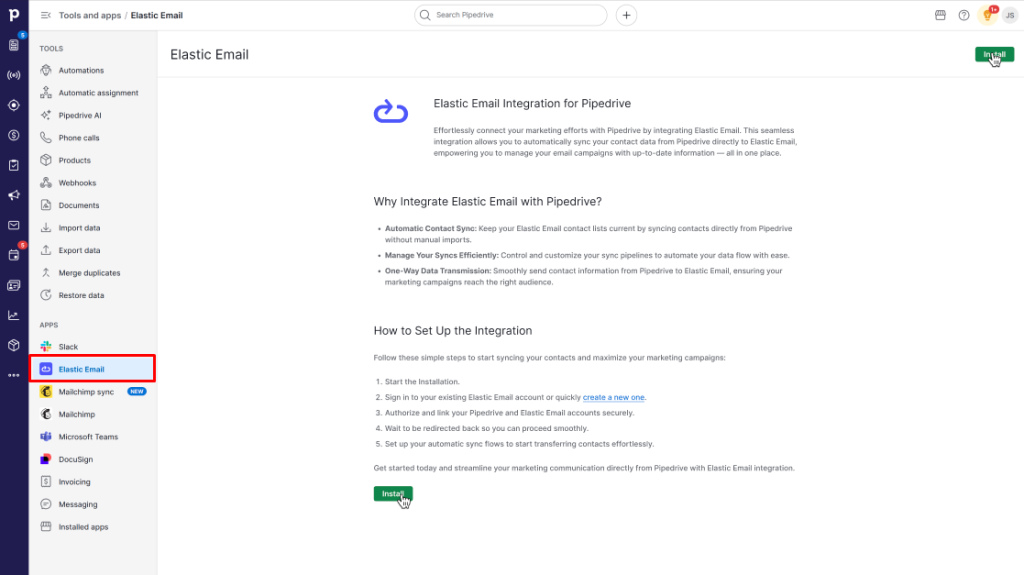
2. Choose a filter. Decide which contacts should be sent over by selecting a Pipedrive filter. This is where you control exactly who ends up in your email list. Options include everyone, people contacted in the last month, people with open deals in the pipeline, contacts who haven't been updated in over a year, and several more, so you can sync a broad audience or a tightly defined segment.
3. Select a mailing list. Choose the Elastic Email list where matching contacts should land. The integration pulls in the names of all the lists in your account, so you just pick the right one.
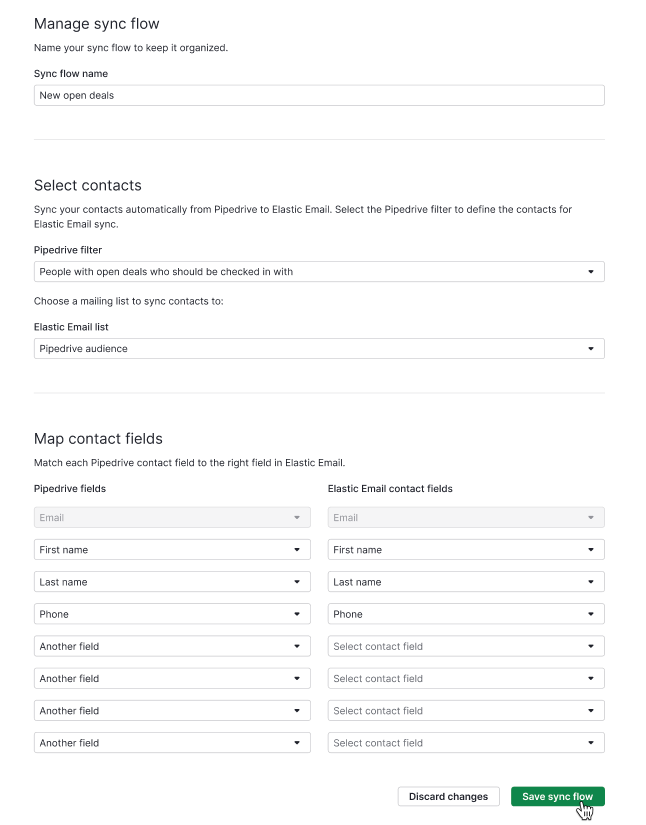
4. Map your fields. Match the fields in Pipedrive (such as email, first name, and last name) to the corresponding contact fields in Elastic Email. Because the integration reads your Elastic Email account directly, the dropdown shows all your fields, including any custom fields you've created, so nothing gets left behind.
5. Activate. Save your setup to turn the connection on. From that point, background synchronization handles the rest.
After it's running, every time a Pipedrive contact meets the conditions in your chosen filter, that contact is added to your selected Elastic Email list automatically.
What you can do with it
Stop exporting and re-importing
The most immediate win is the one you'll feel every week: no more CSV downloads, no more manual cleanup, no more "I forgot to update the list." The right people arrive on their own.
Send to the segment that matters
Because you choose a Pipedrive filter, you're not dumping your entire database into one list. You can route engaged prospects, contacts with open deals, or people who've gone quiet into lists built for exactly that purpose.
Keep your custom fields intact
Field mapping covers both standard fields and the custom fields unique to your Elastic Email account, so the data you've worked to collect carries through to your campaigns.
Manage everything in one place
Once you've saved a connection, a management screen lets you view all your connectors and activate, edit, or delete any of them. If your needs change, your setup changes with them.
Who it's for
This integration is built for teams who use Pipedrive to manage relationships and Elastic Email to reach their audience. It’s also perfect for anyone tired of the manual switch between the two. That includes sales-led businesses nurturing prospects with email, marketers who want CRM segments mirrored in their campaign lists, and small teams who simply don't have time to take care of a spreadsheet export every month.
Getting started
You'll need an Elastic Email account and a Pipedrive account. From there, find Elastic Email in the Pipedrive Marketplace, connect your account, and follow the five steps above. Setup takes minutes, and once it's live, you can leave it running
Enjoying this Content?
You can receive articles like this straight to your inbox.
Sign up for our newsletter and get a dose of email marketing knowledge every month!
FAQ
If you like this article, share it with friends:


Ula Chwesiuk
Ula is a content creator at Elastic Email. She is passionate about marketing, creative writing and language learning. Outside of work, Ula likes to travel, try new recipes and go to concerts.




Eager to put this knowledge to some use?
Try one of our products!


