Table of Contents
Elastic Email x Canva Integration to Enhance Email Designs
We are very excited to announce that we have just launched our integration with Canva - a browser-based graphic design platform used by millions of marketers, creators, and designers to build visual content including social media graphics, presentations, and email visuals. It’s a huge step toward making your emails even more beautiful by transferring Canva designs smoothly, easily, and seamlessly. From now on, you can export your designs from Canva to Elastic Email and the other way round - import images you created in your Elastic Email account to Canva. Let us walk you through how everything works, how to connect both accounts, and start enjoying our brand-new Canva integration.
Table of Contents
TL;DR - Elastic Email x Canva integration at a glance
What the integration does:
The Elastic Email x Canva integration connects both platforms so that design assets move seamlessly between them - no manual downloading or uploading required. It works in both directions: you can export designs from Canva directly into your Elastic Email media manager, and import images from your Elastic Email account into your Canva projects.
Who it's for:
Email marketers and content creators who design visuals in Canva and want to use them in Elastic Email campaigns without the friction of exporting, saving, and re-uploading files manually.
How to set it up - 3 steps:
- Find Elastic Email in Canva's Apps menu and click Connect to authenticate your account.
- To export from Canva to Elastic Email: select your design, choose your file format (JPG, PNG, or PDF), and export. Images land in your Elastic Email media manager.
- To import from Elastic Email to Canva: select Elastic Email in Canva's left-hand menu, click Import, and choose images from your Elastic Email media manager.
Supported file formats:
- JPG - each selected page exported as one separate JPG image
- PNG - each selected page exported as one separate PNG image
- PDF - all selected pages exported as a single PDF file
Elastic Email x Canva Integration - how it works
There are a few really simple steps to integrate your Elastic Email account with Canva and start transferring your image designs between these two apps.
Connecting Elastic Email and Canva accounts
When you’re creating an image in Canva, and you want to export it to your Elastic Email account, you need to find Apps in the left-hand side menu and find Elastic Email among the available apps.
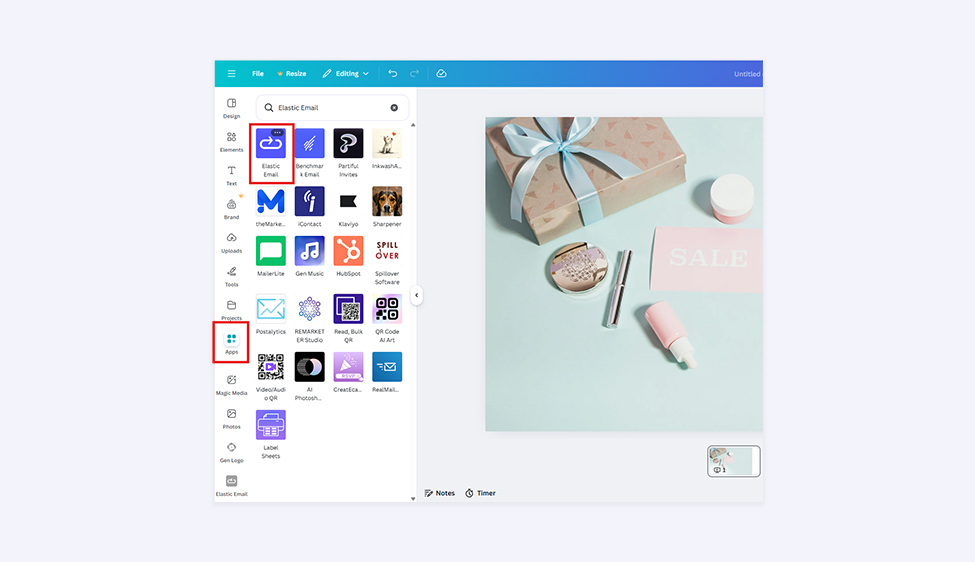
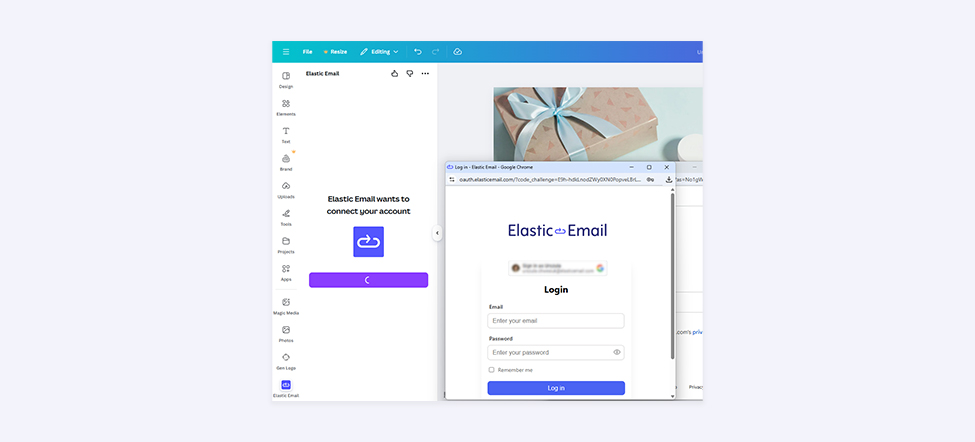
Then, you need to click Connect so that you can log in to your Elastic Email account.

Once you click it, a pop-up window with the Elastic Email account login screen will appear. You need to provide your email address and your account’s password, or sign in with a Google account.
Exporting image designs from Canva to Elastic Email
If you managed to authenticate yourself, congratulations - your Canva and Elastic Email accounts are officially integrated! Now, you need to choose the design you want to export and the settings for your file export.
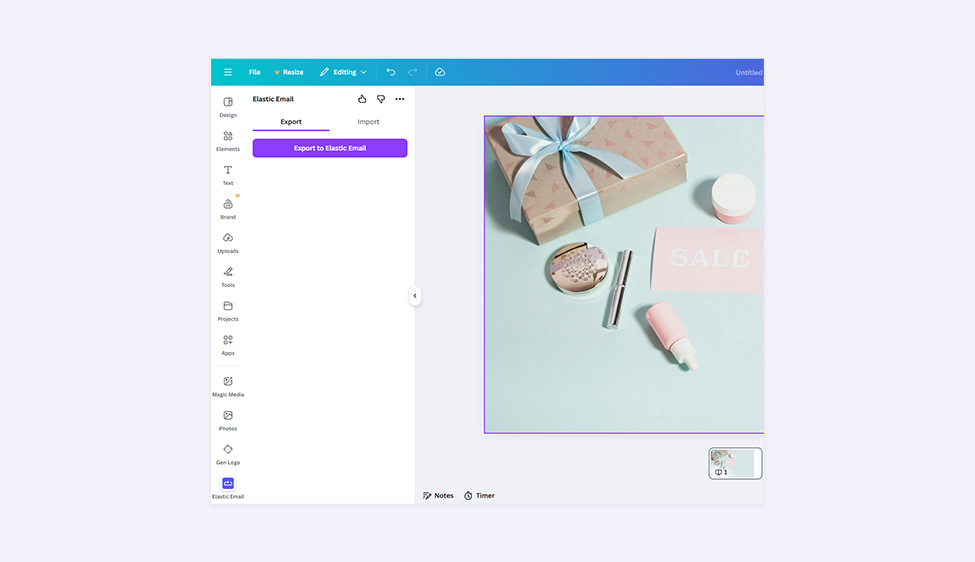
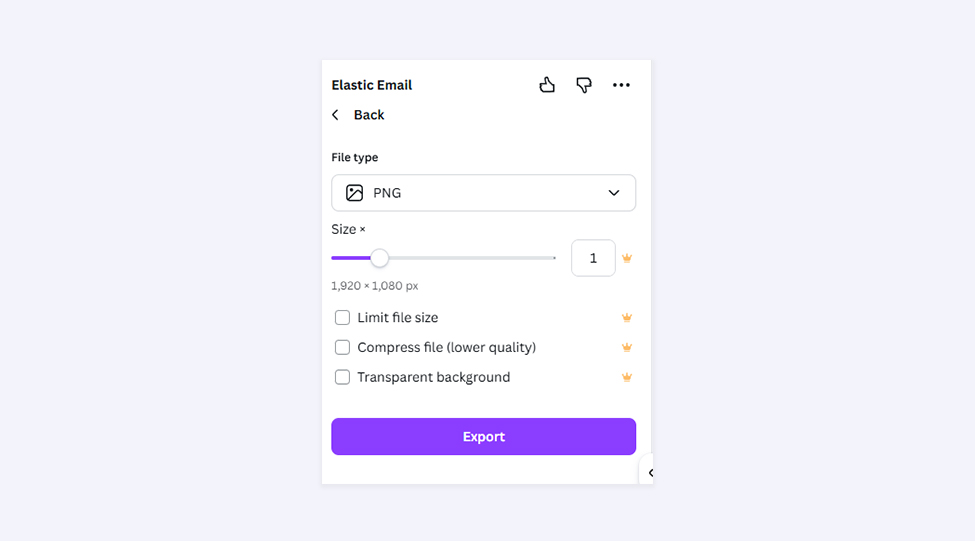
As for the file type, you can choose JPG, PNG, or PDF. This feature transfers an entire page as a single PNG or JPG file. It means you need to choose the pages you want to export in the Select pages dropdown menu in Canva. Each page will translate into one image exported. When selecting the All pages option, the number of pages in the file should determine the number of images sent to your Elastic Email account. For example, if the file contains 10 pages, you will export 10 separate images to Elastic Email. As for the PDF, all your pages will be exported as a single PDF file.
Once your export is complete, you can check it in your Elastic Email account by clicking the Open Templates gallery link on the green banner in Canva.
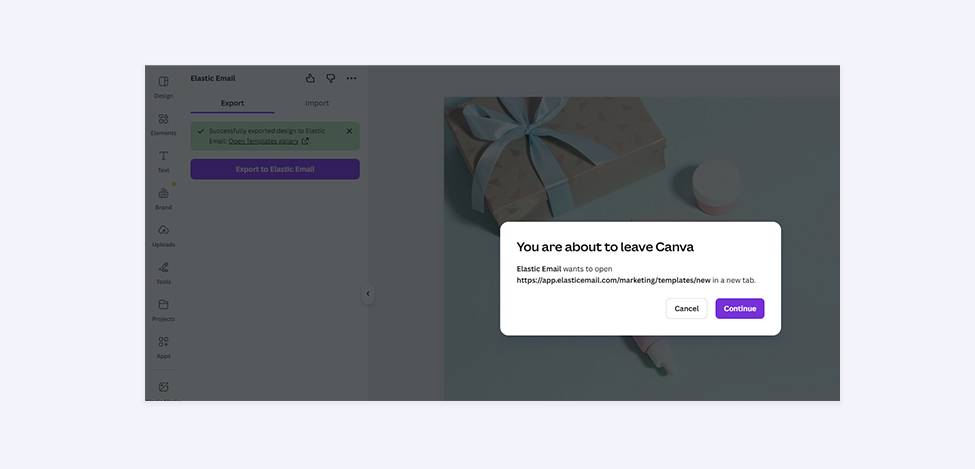
As the link says, you are about to leave Canva and move to the Elastic Email’s Templates gallery. Mind that your exported images will be stored in your Elastic Email media manager, which is accessible from the level of our Email Designer when editing email templates. So, to check your newly added designs, you need to open an email template to which you want to add your image(s). When selecting an image to be added to your template, you’ll see all the images in your Media Manager, including the one you imported from Canva. If you exported a PDF, it will be available in Files.
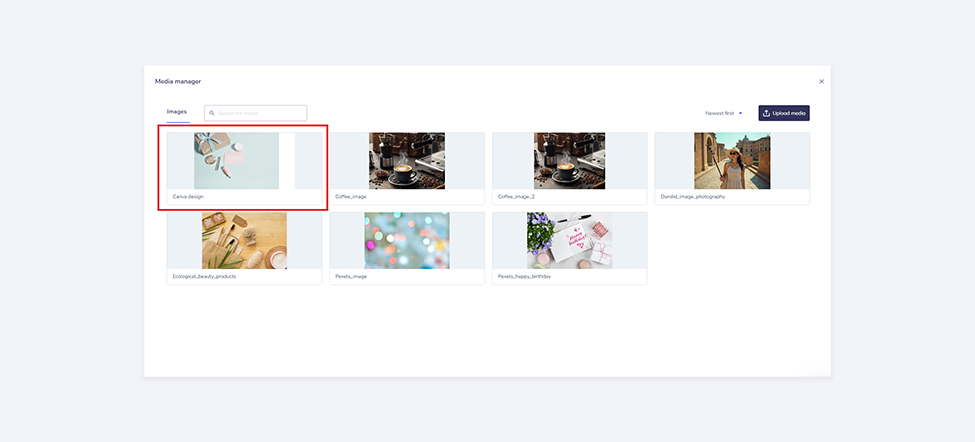
Importing image designs from Elastic Email to Canva
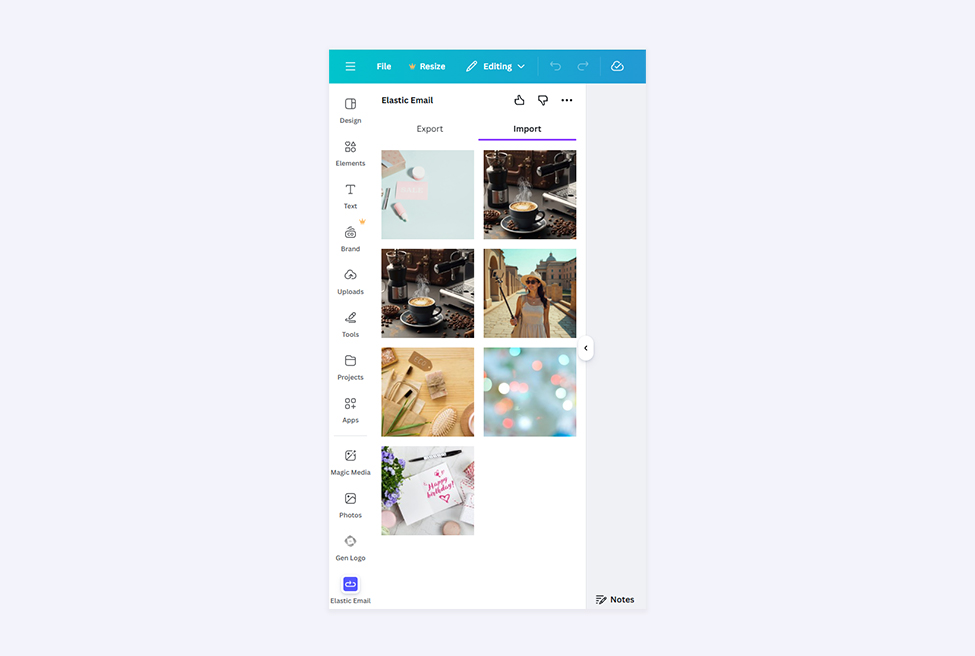
Luckily, in our Elastic Email and Canva integration, image design transfer works both ways. It means that you can also import images created in Elastic Email to your Canva account. All you need to do is choose Elastic Email on your left-hand side menu in Canva and choose Import this time. You’ll have access to all your images from your Elastic Email media manager, which you can easily choose and include in your amazing Canva projects.
Elastic Email x Canva Integration - your new way of enhancing email designs
We’re so happy to announce our brand new integration with Canva. We also hope your workflow will be much smoother and easier. It’s time to say goodbye to downloading and uploading your image designs. Now, you can do it seamlessly and share your beautiful designs with the world. We also hope that the connecting process is nice and easy. But, if you have any questions, you can always reach out to our customer support team to get the assistance you need. You can reach out to them via live chat available in the bottom right corner of our website and app, or via email at support@elasticemail.com. Don’t forget to check out our other integrations to make your workflows even smoother.
Enjoying this Content?
You can receive articles like this straight to your inbox.
Sign up for our newsletter and get a dose of email marketing knowledge every month!
FAQ
Does Elastic Email integrate with Canva?
Yes. Elastic Email has a native integration with Canva that allows users to transfer image designs between both platforms without manual downloading or uploading. The integration works in both directions. You can export designs from Canva to Elastic Email, and import images from Elastic Email into Canva.
How do I connect my Canva account to Elastic Email?
Open Canva and go to the Apps section in the left-hand side menu. Search for Elastic Email and click Connect. A login pop-up will appear where you can authenticate with your Elastic Email email address and password, or sign in with a Google account. Once authenticated, both accounts are linked and ready to use.
How do I export a Canva design to Elastic Email?
With your Canva and Elastic Email accounts connected, open the design you want to export. Go to Apps, select Elastic Email, choose your file format (JPG, PNG, or PDF). Then, select the pages you want to export using the Select pages dropdown. Each selected page will be exported as one separate image file. For PDF, all pages are together in a single file. Once the export is complete, your files will appear in your Elastic Email media manager.
Where do exported Canva designs appear in Elastic Email?
Exported images from Canva are stored in your Elastic Email media manager. It is accessible from within the Email Designer when editing email templates. To use an exported image, open the email template you want to edit, select an image block, and your Canva-exported images will appear alongside your other media manager files. Exported PDFs are available in the Files section.
How do I import images from Elastic Email into Canva?
In Canva, open the left-hand side menu and select Elastic Email. Click Import to access all images stored in your Elastic Email media manager. From there, select the image you want to use and it will be available in your Canva project.
What file formats does the Elastic Email Canva integration support?
The integration supports three file formats: JPG, PNG, and PDF. For JPG and PNG, each page of your Canva design is exported as a separate image file. So, a ten-page design produces ten individual images in your Elastic Email media manager. For PDF, all pages are combined and exported as a single PDF file.
Do I need a paid Canva or Elastic Email account to use the integration?
The integration is available through Canva's Apps marketplace. You need an active Elastic Email account to authenticate the connection. For specific plan requirements on either platform, check the Elastic Email integrations page or Canva's Apps documentation for the most up-to-date access details.
If you like this article, share it with friends:


Ula Chwesiuk
Ula is a content creator at Elastic Email. She is passionate about marketing, creative writing and language learning. Outside of work, Ula likes to travel, try new recipes and go to concerts.

Eager to put this knowledge to some use?
Try one of our products!


