
Table of Contents
How to Improve Email Newsletters with Our AI Template Designer
That challenge ends now - our AI Template Designer is designed to bring speed and power to your email creation process. In this guide, we’ll show you how to improve email newsletters using out tool. We’ll walk you through how to go from concept to a stunning email in minutes, whether you prefer starting with a pre-designed template and refining it with AI, or generating a unique design from a simple text prompt.
Table of Contents
TL;DR - how to improve email newsletters with the Elastic Email AI Template Designer
Elastic Email's AI Template Designer lets you build newsletters two ways:
- start from a template in the gallery and refine it with natural-language prompts (e.g., "make this layout more modern"),
- generate a design from scratch by describing your brand, layout, and content blocks in a single prompt.
You can switch between the AI designer and the standard drag-and-drop editor at any time, and every result is mobile-responsive by default.
Email Templates Gallery
The fastest way to a professional email is to use an expertly designed template as your foundation. Until now, our email template gallery was only available in our application after logging in. But, now you can also view it on our website at a dedicated email template gallery address. You can view every template from up close, check what it looks like on desktop and mobile, or move right to editing it.
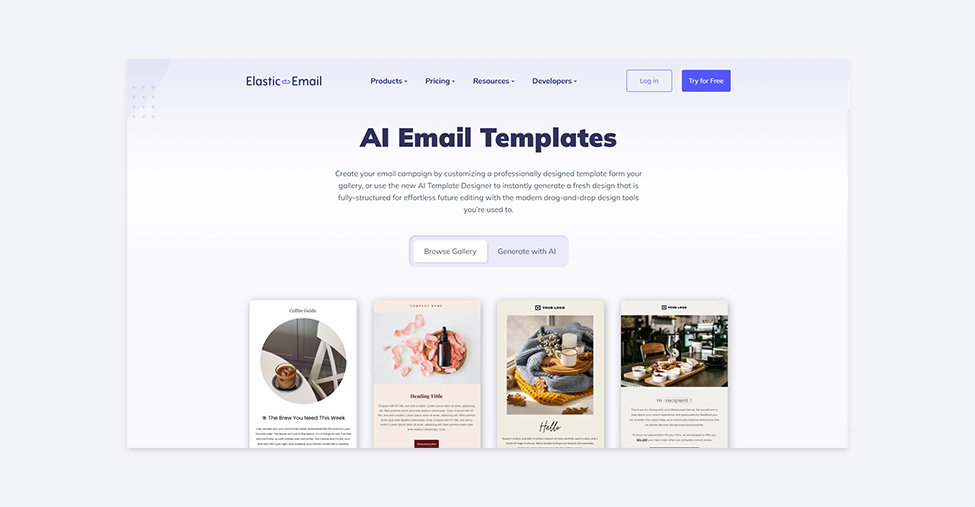
Simple customization of newsletter templates
One click, and you’ll be redirected to your Elastic Email account, and the template will be ready to edit in our email designer. You can choose whether you want to customize your template in our standard drag-and-drop email designer or in the AI template designer. Remember that this decision is not once and for all. You can easily switch between these two designers when editing your template as many times as you want to. We’d like to make it easier for you to create the perfect template that meets your needs. This hybrid approach is key to accelerating your workflow.
In our email designer, you can customize the template by changing the texts, images, buttons, colors, or anything you need. You can add or change the position of elements by simply dragging and dropping them wherever you see fit, or even delete some elements completely.
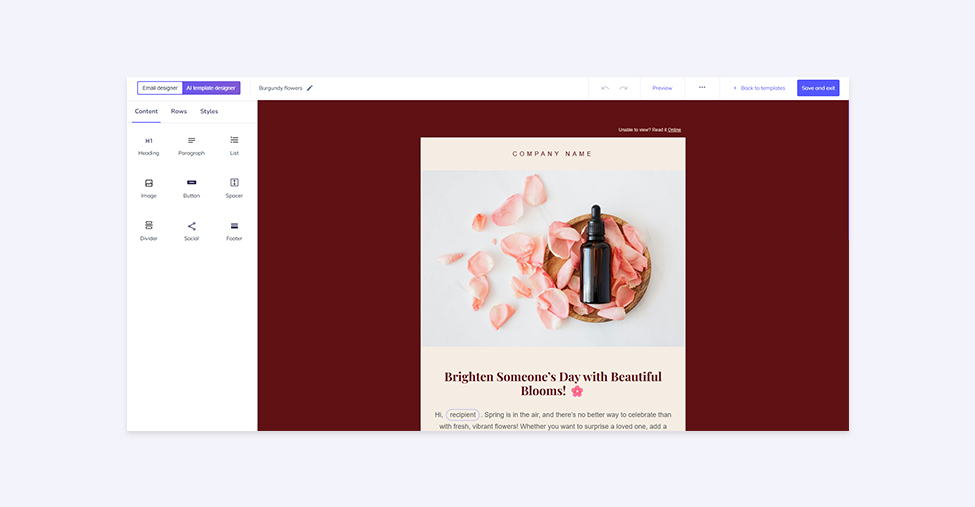
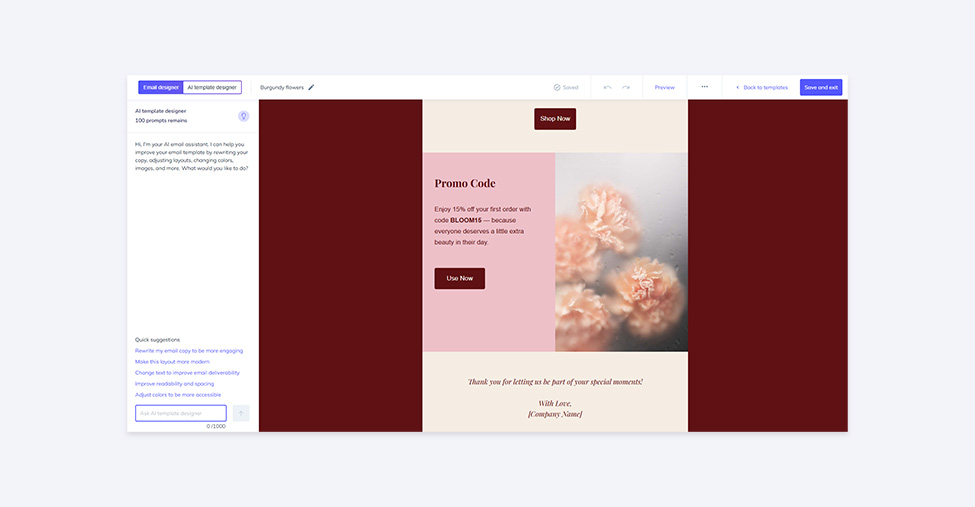
If you prefer to edit the template in our AI template designer instead of manually clicking and editing elements, you communicate your desired changes using natural language. The AI understands your request and applies it to the entire template or individual block. Just click on AI template designer in the top left corner of the email designer screen. Immediately, you’ll see how many prompts you have left, as well as quick suggestions for prompts. For example, rewrite my email copy to be more engaging or make this layout more modern. You can also insert your own prompt so that the AI template designer can make the changes.
As with any chat AI, you can suggest improvements until the result meets your expectations. Here are some examples of prompts you can use:
- "Change the primary button color to #2596be and make all text headings use the font 'Inter'."
- "Rewrite the introduction paragraph to be more enthusiastic and clearly announce a 20% off sale on all items, ending Friday."
- "In the footer block, make the social media icons 50% larger."
This feature allows non-coders and non-designers to execute complex design or copy changes instantly, turning hours of manual adjustment into a single, straightforward prompt.
Creating a template from scratch with AI Template Designer
You can also create your email template from a blank slate and let AI generate a template that perfectly matches your unique vision. This time, too, creating a template was previously only possible from within the application after logging in. Now, when you visit the aforementioned AI Email Templates page, there is a second tab available under the header - Generate with AI. Describe your idea and let artificial intelligence bring it to life. You can also start the whole process in the traditional way by logging into your Elastic Email account and going to create an email template. When starting a new template, choose the option to begin with the AI Template Designer. You'll be presented with the initial prompt interface, which is your opportunity to act as the creative director.
The AI needs a clear brief to deliver a perfect result. There are a few essential elements you need to include in your prompt:
- Define the purpose and tone (the goal).
- Specify the aesthetics and limits (the rules).
- Structure the layout - list of all sections and blocks (the blueprint).
"Design a template for a weekly SaaS newsletter. The tone should be informative and professional. Use the brand colors: Primary Blue #1A73E8, Secondary Gray #4A4A4A. The main layout should be a single column. Include a hero banner with a clear CTA button, a section for three featured blog post summaries, and a dedicated customer testimonial block.”
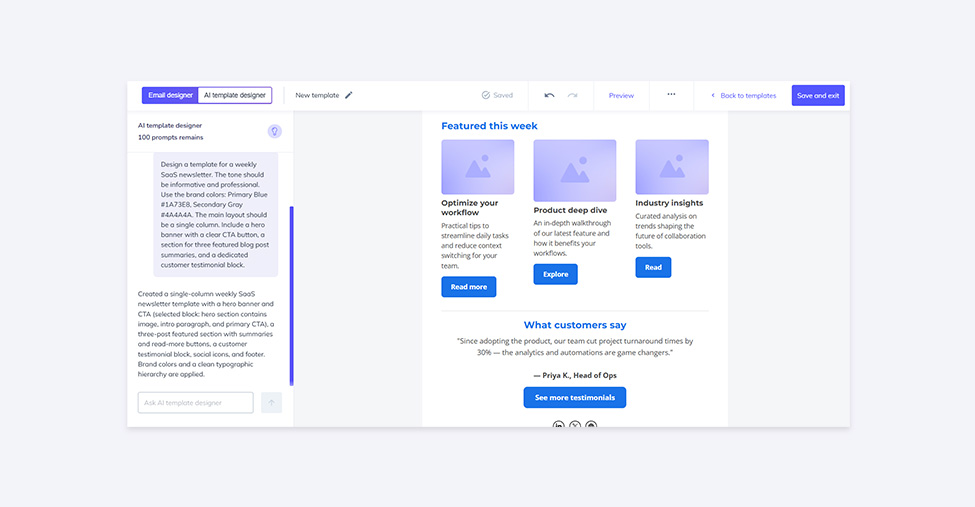
The initial template generated is your first draft. From here, you simply refine it using the same conversational prompts as we discussed in the template customization process. Remember to check the generated template across both desktop and mobile views.
How to improve email newsletters with AI - conclusion
We hope thanks to this article you learned how to improve email newsletters using Elastic Email. Our AI Template Designer fundamentally changes the way you approach newsletter creation. By leveraging AI, you don't just save hours on design, but you ensure brand consistency, achieve seamless mobile responsiveness, and boost deliverability by starting with optimized code.
Stop staring at a blank screen and start creating campaigns that convert. Log into Elastic Email, explore the gallery, and try out the AI Template Designer today to experience the future of email marketing.
Enjoying this Content?
You can receive articles like this straight to your inbox.
Sign up for our newsletter and get a dose of email marketing knowledge every month!
FAQ
If you like this article, share it with friends:


Ula Chwesiuk
Ula is a content creator at Elastic Email. She is passionate about marketing, creative writing and language learning. Outside of work, Ula likes to travel, try new recipes and go to concerts.

Eager to put this knowledge to some use?
Try one of our products!


